
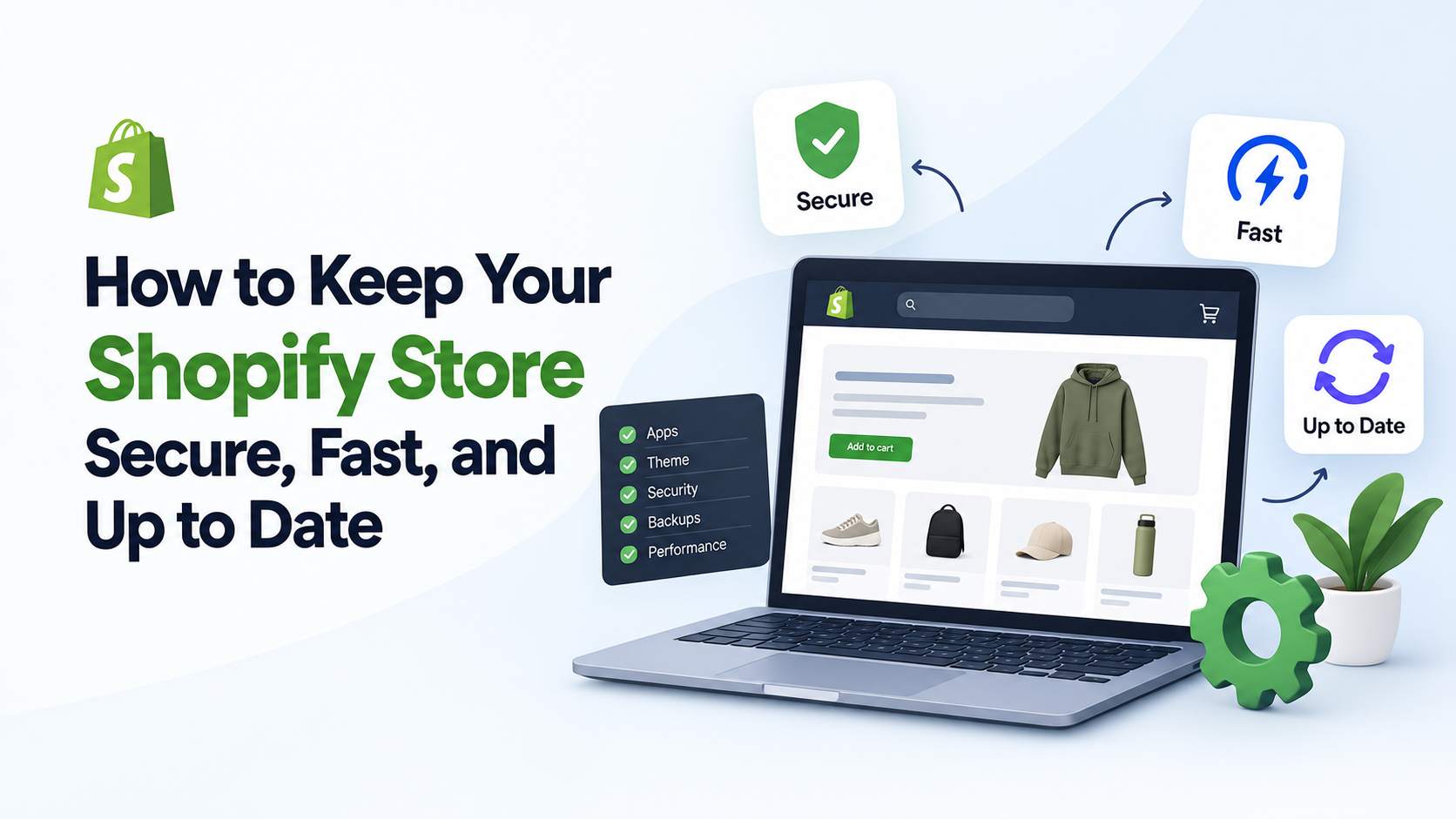
Running a Shopify store involves more than adding products and processing orders. Store owners also need to protect customer information, maintain fast loading speeds, and make sure their websites continue to work as expected. Even small technical issues can affect the shopping experience, reduce customer confidence, and lead to lost sales. Businesses that need help managing these responsibilities can explore TheShopNinjas for Shopify-focused support and services.
The good news is that maintaining a healthy Shopify store does not always require advanced technical knowledge. By following a consistent maintenance routine, store owners can identify problems early, improve performance, and provide customers with a smoother shopping experience.
1. Keep Your Shopify Store Updated
An online store relies on several components, including its theme, installed apps, product information, and integrations. When these components are neglected, compatibility issues and unexpected errors can occur.
Start by reviewing your installed apps regularly. Remove applications that are no longer needed, and check whether essential apps are functioning correctly. Unused apps can create unnecessary complexity and may continue to load scripts that affect store performance.
You should also review your theme whenever you make significant changes. If you use a customized theme, test updates in a duplicate theme before publishing them. This helps prevent layout problems, broken sections, or changes to important store functionality.
Keeping your store organized and reviewing changes before applying them can reduce avoidable technical problems
2. Improve Your Shopify Store's Loading Speed
Speed matters because shoppers expect product pages, collections, and checkout experiences to respond quickly. Slow pages can frustrate visitors and make it harder for them to complete purchases.
One of the easiest ways to improve performance is to optimize images. Large product images can increase page weight, especially when a store contains hundreds of products. Use appropriately sized images and modern formats, such as WebP, when supported by your workflow.
Other practical steps include:
- Compressing images without noticeably reducing quality.
- Removing unused apps and unnecessary tracking scripts.
- Limiting excessive animations and heavy visual effects.
- Reviewing third-party scripts that load across multiple pages.
- Keeping homepage banners and promotional sections lightweight.
Check your store using Google PageSpeed Insights and review its Core Web Vitals. Pay attention to loading performance, responsiveness, and visual stability rather than relying on a single overall score.
Make changes gradually and test their impact. Removing a useful app or changing a theme component without testing could solve one problem while creating another.
3. Strengthen Store Security
Shopify manages much of the underlying hosting infrastructure and platform security, but store owners still have responsibilities. Account access, staff permissions, third-party applications, and customer data handling all deserve attention.
Begin with your Shopify account. Use a strong, unique password and enable two-step authentication. Review staff and collaborator accounts regularly, removing access for people who no longer work on the store.
Follow these security practices:
- Give each staff member only the permissions they need.
- Review third-party apps before granting access to store data.
- Remove apps you no longer use.
- Watch for suspicious login activity and unexpected account changes.
- Avoid sharing login credentials through unsecured channels.
- Keep customer information accessible only to authorized personnel.
Be cautious with unexpected emails or messages requesting account credentials. If a message claims to come from Shopify, verify it through official channels instead of clicking unfamiliar links.
These simple precautions can reduce the risk of unauthorized access and help protect your business operations.
4. Maintain Regular Backups of Important Store Data
Although Shopify manages its platform infrastructure, merchants should not assume every type of store information can be restored exactly as it was after an accidental change.
Product descriptions, prices, collections, theme customizations, and other important information should be protected. Shopify's CSV export tools can help you create copies of certain product and customer records, while theme duplication can provide a useful safeguard before major design changes.
However, exports do not necessarily capture every aspect of a store. For example, app settings, order-related information, and customized functionality may require separate protection methods.
Create a backup routine that matches your store's needs. Before changing a theme, modifying product data in bulk, or installing a new application, preserve the information that would be difficult to recreate.
It is also worth documenting important customizations and keeping a record of significant changes. This makes troubleshooting easier when something stops working as expected
5. Monitor Apps, Integrations, and Store Functionality
Shopify apps can add valuable features for email marketing, subscriptions, inventory management, digital products, and customer support. However, each additional integration introduces another component that may need monitoring.
Review your apps periodically to confirm that they still serve a clear purpose. Check for duplicate functionality, unnecessary permissions, recurring costs, and scripts that may affect page speed.
Test important customer journeys after making significant changes. Visit product pages, add items to the cart, apply discount codes, and check that checkout works correctly. If your store uses external integrations, confirm that inventory, order details, and other relevant information are syncing as expected.
When technical problems require more than routine checks, professional Shopify maintenance services can help merchants manage ongoing updates, security monitoring, backups, and technical issues.
The objective is not to add more tools or services than necessary. It is to keep the systems supporting your store reliable and make sure important features continue working together.
6. Check Product Pages and Links Regularly
Broken links, outdated product descriptions, missing images, and incorrect prices can damage customer confidence. They can also create unnecessary obstacles for shoppers who are ready to buy.
Review your main product and collection pages regularly. Confirm that product variants display correctly, prices are accurate, images load properly, and availability information reflects your inventory.
Pay particular attention to products promoted through advertising campaigns, email newsletters, or social media. A broken landing page can waste marketing spend and send potential customers away.
You should also check navigation menus, footer links, contact information, and important policy pages. If you change a product URL, consider whether a redirect is needed to guide visitors and search engines to the correct destination.
A simple checklist can help you track these tasks and ensure that high-traffic pages receive attention first.
7. Create a Practical Shopify Maintenance Schedule
Store maintenance becomes easier when it is part of a regular routine instead of something you do only after a problem occurs.
Your schedule should reflect your store's size, order volume, and technical complexity. A store with frequent promotions and many integrations may need more frequent checks than a small store with a limited product range.
Here is a practical starting point:
Weekly tasks
- Review customer-facing pages and important store functions.
- Check for broken links, missing images, and obvious display issues.
- Review unusual account activity and important app notifications.
- Test key shopping journeys after major changes.
Monthly tasks
- Review installed apps, permissions, and recurring charges.
- Check page speed and Core Web Vitals.
- Export important data and verify backup procedures.
- Review product information, navigation, and redirects.
Before major changes
- Duplicate your theme or preserve the relevant files.
- Back up affected data.
- Check app compatibility and integration requirements.
- Test the changes before publishing them to your live store.
This schedule provides a useful foundation, but it should be adjusted as your business grows.
Final Thoughts
Keeping a Shopify store secure, fast, and up to date requires consistent attention to the details that support everyday operations. Regular app reviews, image optimization, account security, reliable backups, and functional testing can prevent many common problems before they affect customers.
Start with the areas that pose the greatest risk to your store, then build a maintenance routine that fits your workload. By treating maintenance as an ongoing responsibility rather than an occasional task, you can provide a better shopping experience and spend less time dealing with preventable technical issues.




Responses (0)