
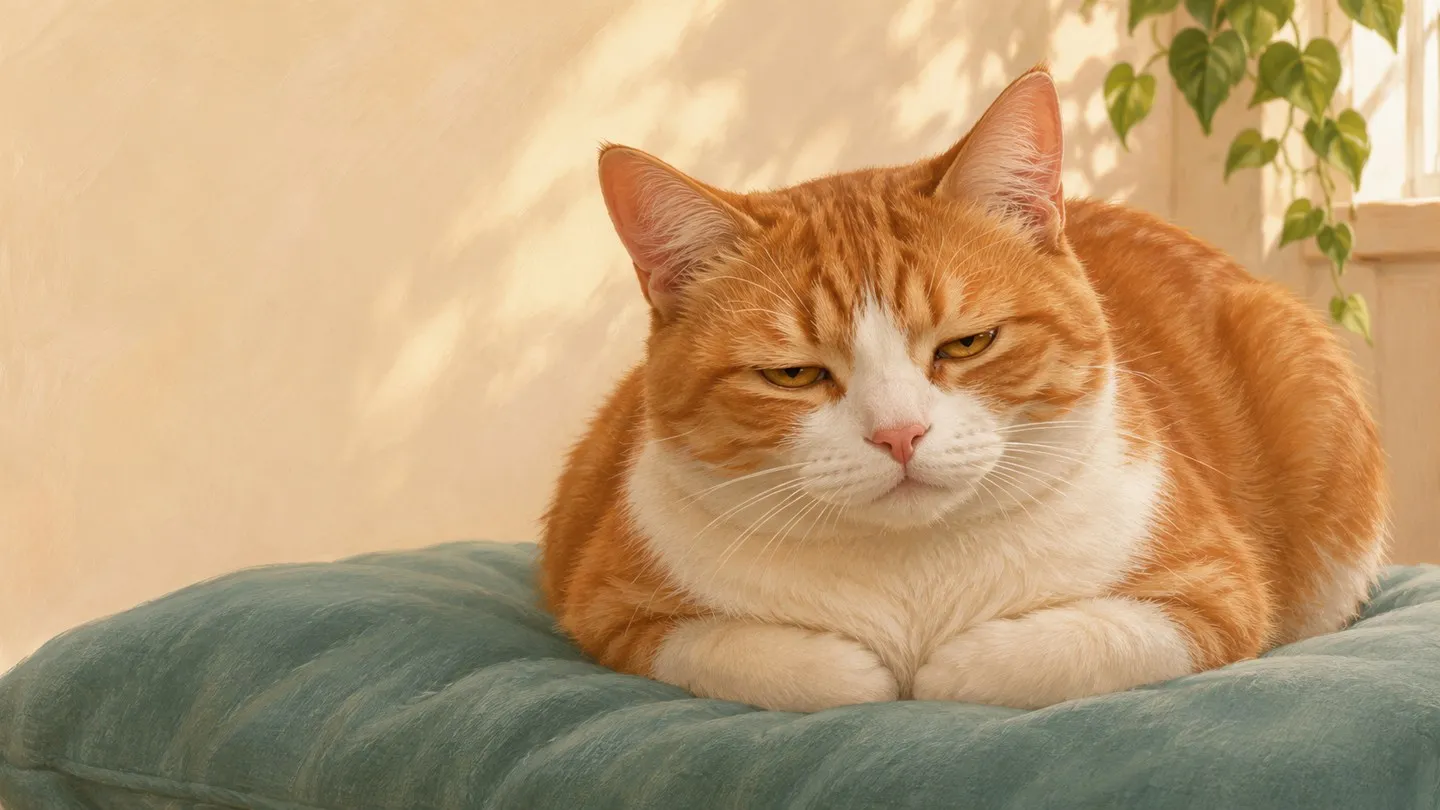
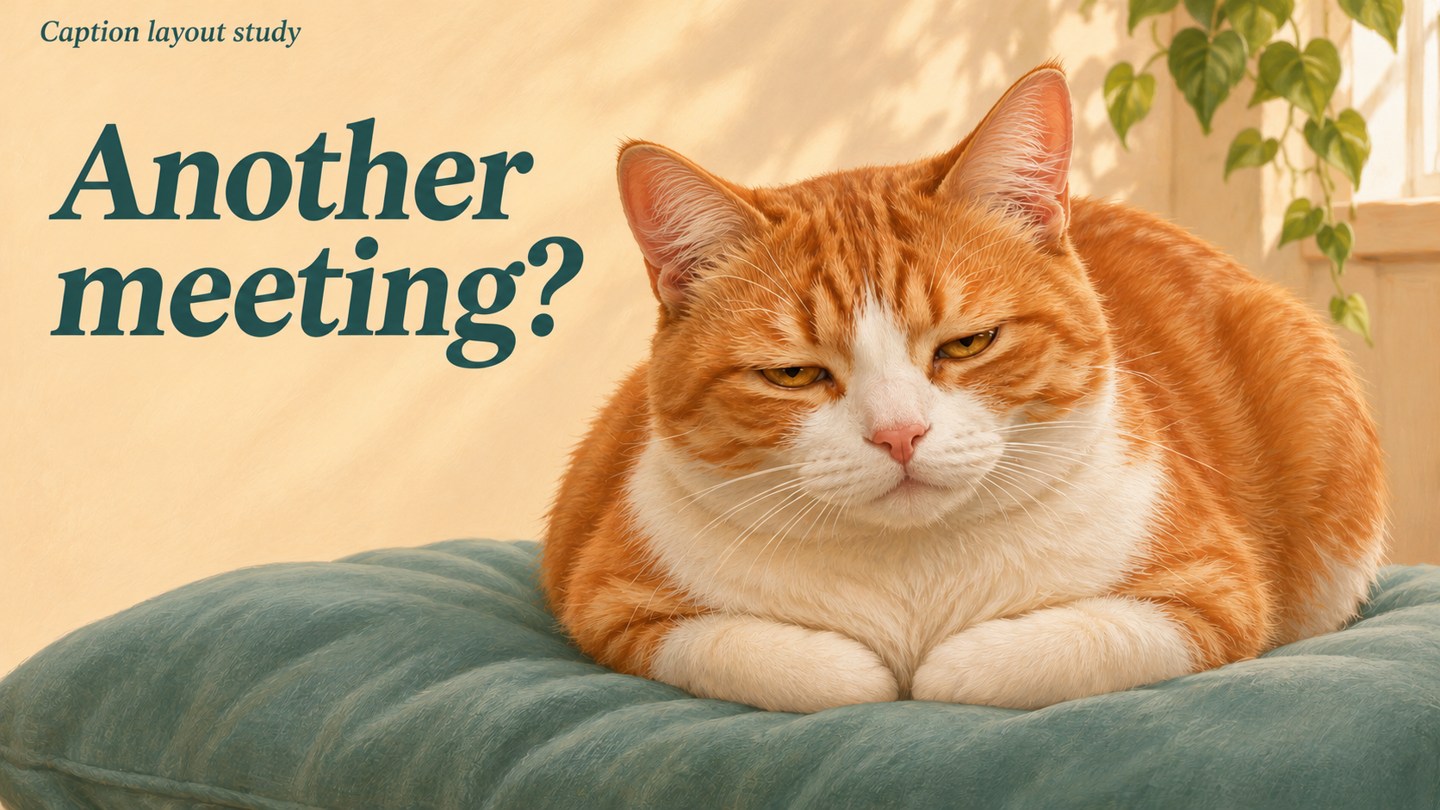
Someone drops another meeting into the group chat. You could type “already?” Or you could send the sleepy face your cat makes while occupying an entire cushion, with “Another meeting?” above it.
That is the small project here: a short pet reaction you can save and reuse in a conversation. The joke comes from a familiar expression and a few words. The movement only needs to give it a little timing.
The ginger-and-white cat in these illustrations is fictional, created for this guide. The images show a plan, not a tested video result. For your version, use a photo you are comfortable uploading and sharing, without private details in the background.
Match the sentence to the face you already have
Pick the line before opening a generator. Try it beside the still photo: does the combination make sense immediately?
- “Another meeting?” fits an already drowsy, half-eyed expression. Plan a slow lowering of the eyelids.
- “Is dinner ready?” fits an alert face looking toward something just outside the frame. Plan one small ear swivel.
- “Not moving.” fits a comfortable loaf or sprawling pose. Ask for barely visible breathing while the pose stays put.
These are human jokes placed beside an animal’s expression, rather than claims about what the animal is thinking. Choose a line your intended chat will enjoy; a gentle private joke can land differently in a work group.
For the worked example, use “Another meeting?” and keep the cat’s head, paws and body still. The eyes do the work. Avoid asking for a shrug, spoken reply or dramatic eye roll that changes the pet’s familiar face.
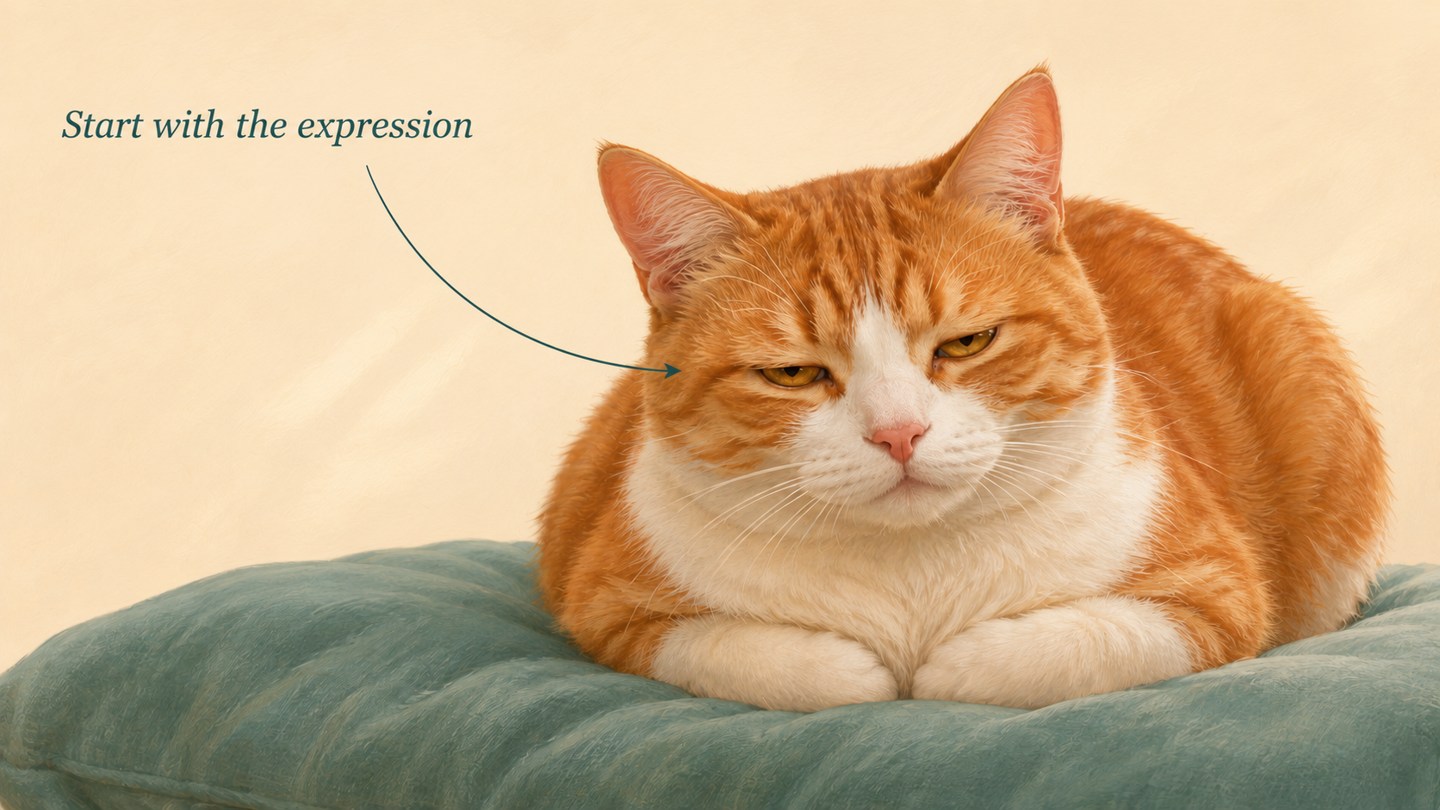
Prepare two separate images, with one small difference
OpenMaker’s image-guided free form takes a first image and a last image. Have both files ready before generating. A single photo uploaded once is not the complete two-image method described here.
For the sleepy reaction, prepare:
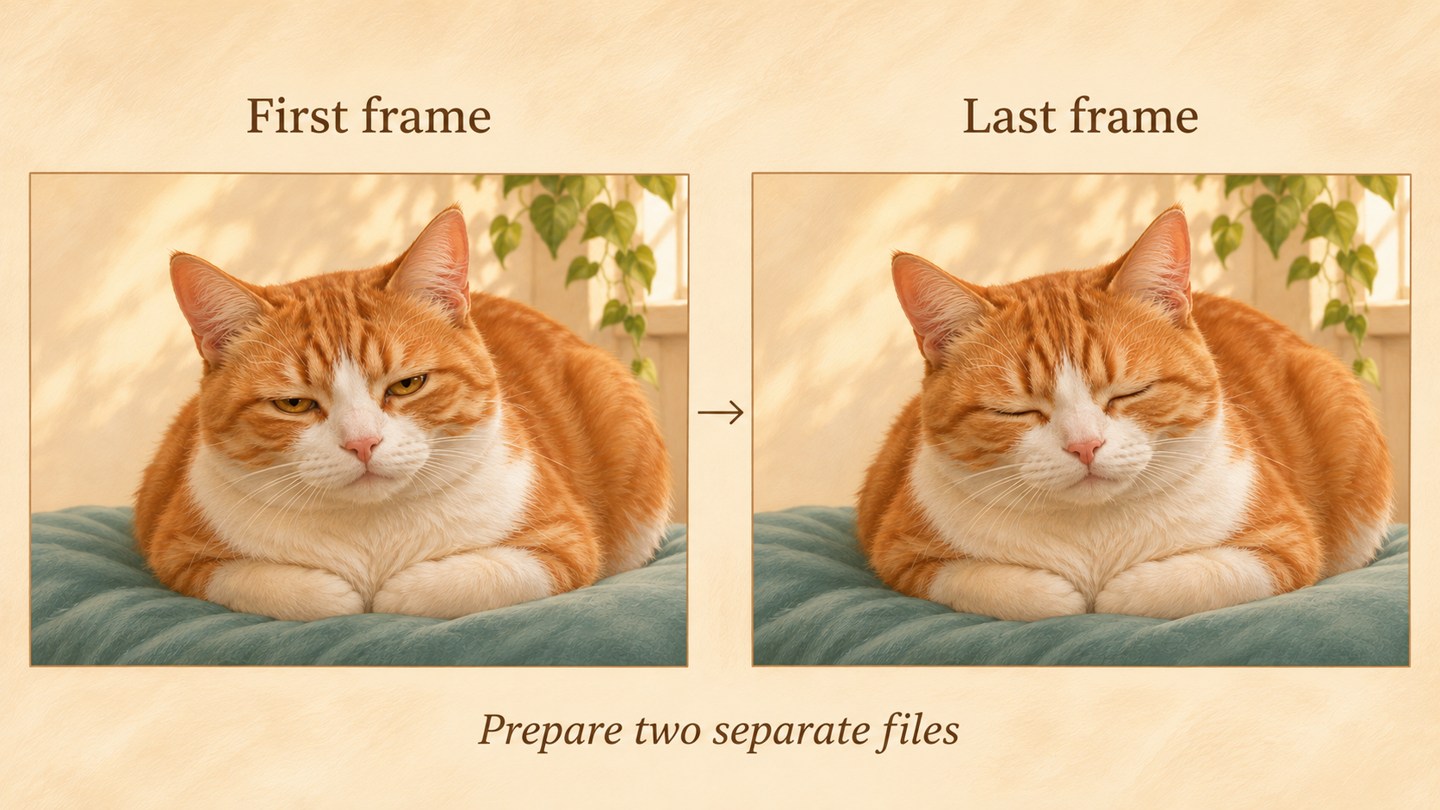
- First frame: the cat with half-open eyes, its full face and ears comfortably inside the crop.
- Last frame: the same view with the eyes gently closed. Keep the head position, fur markings, paws, cushion, lighting and crop consistent.
A pair from your own fixed-camera burst is a useful starting point if it contains those poses. Choose nearby frames with no head turn or camera movement. Do not disturb a resting pet to manufacture a reaction.
If you only have one suitable photo, you can work on a copy in an image editor you are comfortable using and prepare an edited end pose. Check that the change is limited to the eyelids; a different muzzle, eye shape or fur pattern is a reason to revise the file. If you cannot make a believable second image, save the captioned still for now. A duplicate of the same photo in both slots is only an untested starting attempt, not a promise that the service will invent the blink you want.
Export the two prepared files at the same dimensions and aspect ratio. Keep the caption out of both. The comparison below explains the pair; do not upload the whole two-panel sheet as one image.
Generate the movement, then download the video
Tool suggestion: OpenMaker is one option for the optional animation in this example.
Open OpenMaker for this step. Its published free workflow is described as powered by MiniMax H3, with five-second, 480p generation at zero credits and no signup required. It advertises unlimited attempts; that does not guarantee immediate availability or a good result, and requests may queue.
Upload the prepared first and last images in that order. Choose the aspect ratio you prepared—use 16:9 for a wide composition like this example, or prepare both files square and choose 1:1. Do not switch ratios and assume the ears will remain in frame.
Paste this motion prompt for the half-open-to-closed pair:
The same ginger-and-white cat rests on the same cushion. Its eyelids slowly lower from the first image to the gently closed position in the last image. Keep its head, ears, paws, fur markings, body and background steady. Fixed camera. A small, natural movement only. No text, speaking, new objects or scene changes.
Select Generate, wait for the preview, and inspect it before downloading. Look at the eyes, whiskers, nose, ear edges and folded paws. Reject a result that reshapes the face, adds a limb or makes the background wobble. If the movement is too large, simplify the action rather than adding several competing instructions.
Once you have a preview you want to keep, use the download option and save the video somewhere you can find from your phone. This guide has not generated or tested the pictured example; preserving every marking or getting a particular gesture is not guaranteed.
For the other reactions, adapt these prompts only after preparing a compatible pair for the chosen action:
“Is dinner ready?” — an alert pet, one ear slightly reoriented in the last image:
The same pet remains in the same alert pose. One ear makes a small swivel toward the position in the last image. Keep the eyes, muzzle, head, body, markings and background steady. Fixed camera. No talking, text or new objects.
“Not moving.” — a resting pet, with closely matching resting endpoints:
The same pet stays comfortably in place. Only very subtle breathing is visible. Keep the face, paws, body position, markings and background steady. Fixed camera. No getting up, camera movement, text or new objects.
If the endpoints imply a bigger action than the sentence needs, choose a closer pair. The “Not moving” version is especially easy to overdo: a still image with the right line may be funnier than an exaggerated breathing effect.
Add the words after the movement is finished
Import the downloaded video into a video editor that lets you add a text layer. The exact controls depend on the editor; the sequence is:
- Add “Another meeting?” as a text layer, without quotation marks.
- Put it in the empty area beside or above the face, leaving the ears and eyes clear. Use one or two short lines, strong contrast and generous margins.
- Extend the text layer across the whole clip so the joke is readable from the first moment.
- Preview at roughly the size it will appear in a chat. If you have to zoom in to read it, enlarge the words or shorten the line.
- Export a new video copy, keeping the original download separately.
OpenMaker is providing the optional motion here; these are separate editing steps. Do not rely on the video model to spell the caption correctly or treat this layout illustration as an exported video.
Send a video—or make a GIF separately
For the shortest route, attach the captioned video in your chat app. Preview the attachment before sending: is the whole sentence visible, is the face still recognisable, and does the movement suit the joke? Actual playback, previews and file limits depend on the app.
If you specifically want a GIF, use a separate converter after adding the words. For example, Adobe Express’s video-to-GIF converter provides an upload-and-convert route. Upload the captioned video, select the portion and available output settings you want, then download and inspect the GIF. Its account requirements are separate from OpenMaker’s; this guide does not promise signup-free conversion.
A GIF conversion does not automatically make a native sticker pack or import it into a messenger. Keep the video if that is what your app handles well. If the GIF is too large, shorten the selected segment or use smaller converter settings, then check the text again. Watch any repeated playback too: a closed-eye ending that jumps back to open eyes may look abrupt, and these endpoints do not promise a seamless loop.
Save the keeper with a name you will recognise when attaching it—perhaps “meeting-cat”—and try the finished file in a private draft or a chat with yourself if your app offers one. When the next invitation appears, the useful part is already done: a face, a short line, and one small reaction ready to send.



Responses (0)